



We all know Windows Update.
Some people hate it. Some people barely notice it. Either way, it is a permanent part of Windows and something worth watching closely.
Here is one reason why.
A recent client needed a small off-lease refurbished computer. Nothing unusual. We ordered the system, installed the extra parts it needed, set up Windows, and added the requested software.
We were nearly finished.
During our final checks, we inspected the client’s old backup and data drive, which had been installed inside the refurbished computer as a secondary drive.
It reported BitLocker encryption.
A closer inspection showed that the new Windows boot drive was being encrypted too.
We had never opened the BitLocker settings or deliberately turned it on.
Why does that matter?
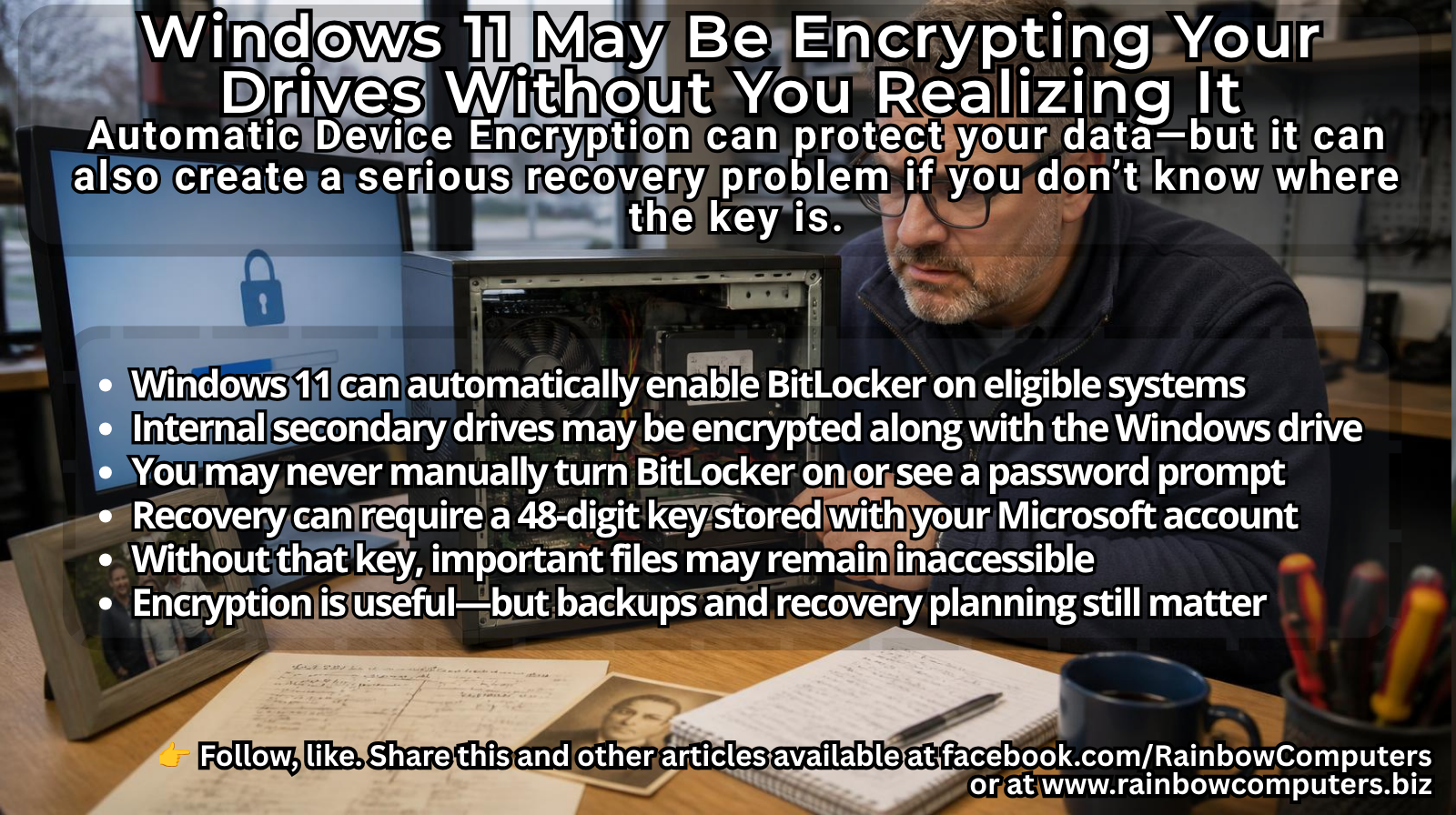
BitLocker encrypts the contents of a drive so they cannot easily be accessed without authorization.
For a stolen business laptop or a computer carrying private records, that can be a major benefit.
For a home user who does not know encryption is enabled—or does not know where the recovery key is stored—it can become a serious data-recovery problem.
That drive might contain:
* Decades of genealogy research
* Thousands of family photos
* Personal writing, business records, or irreplaceable memories
If the computer fails and BitLocker demands its 48-digit recovery key, the data may be inaccessible until that key is supplied.
Without the correct key, even a professional repair or recovery shop may be unable to retrieve the files.
That is why we normally disable BitLocker on home systems we configure unless the client specifically wants encryption or has a clear recovery and backup plan.
What changed?
Starting with Windows 11 24H2, Microsoft expanded the range of systems eligible for automatic Device Encryption.
On a compatible computer, encryption can be prepared during Windows setup and activated when the user completes setup and signs in with a Microsoft account, such as an Outlook or Hotmail address.
This may affect the main Windows drive and other internally installed fixed drives.
That last part matters.
An old data or backup drive installed inside the computer may be treated as another fixed drive. In our client’s case, Windows had begun encrypting both the fresh Windows drive and the older secondary drive without us deliberately enabling BitLocker.
The average user may never realize this has happened.
Windows normally unlocks the drive automatically during everyday use, so there may be no obvious password prompt or warning. The recovery key is commonly stored in the Microsoft account used during setup.
The problem appears later—perhaps after a motherboard failure, firmware change, security-chip problem, or another event that causes Windows to demand the recovery key.
At that point, the owner needs to know:
* Which Microsoft account was used
* The password for that account
* Where the correct recovery key is stored
* Which key belongs to which computer or drive
If that information cannot be found, the files may remain permanently locked.
Encryption should be a decision, not a surprise
We are not saying BitLocker is always bad.
Encryption can provide valuable protection if a laptop is stolen or if the computer contains private financial, medical, business, or customer information.
But it should be enabled knowingly.
The owner should understand what is being encrypted, where the recovery key is stored, and how the files will be recovered if the computer fails.
Most importantly, encryption is not a replacement for a proper backup.
Important files should still exist somewhere else—on an external drive, another computer, or a trusted backup service. Ideally, there should be more than one backup copy.
New-computer setup is no longer “next, next, finish”
Whether you buy a new computer from a big-box store or bring an off-lease system into your home office, do not assume the default Windows setup is automatically right for you.
After setup, check:
* Whether Device Encryption or BitLocker is enabled
* Which drives are being encrypted
* Which Microsoft account holds the recovery key
* Whether another copy of the key has been stored safely
* Whether your important files are backed up separately
At Rainbow Computers, we inspect these settings before a system leaves our bench.
We configure home systems according to the client’s needs rather than blindly accepting every Windows default. If encryption is wanted, we help make sure it is intentional and recoverable. If it is not wanted, we disable it before it creates a future surprise.
Do not let an unnoticed encryption setting lock you out of your digital life.
Follow Rainbow Computers on Facebook.com/RainbowComputers or visit RainbowComputers.ca
#Windows11 #BitLocker #DataRecovery #ComputerSecurity #ComputerRepair #OntarioSmallBusiness #TechTips #DataBackup #RainbowComputers #RainbowComputersINFO #RainbowComputersCA #allistonreaderschoice2025